Fresh Moves
Platform Experience
We’ve rebuilt the entire menu system as part of our move toward a Workshop-driven platform, bringing it closer to the Garry’s Mod experience.
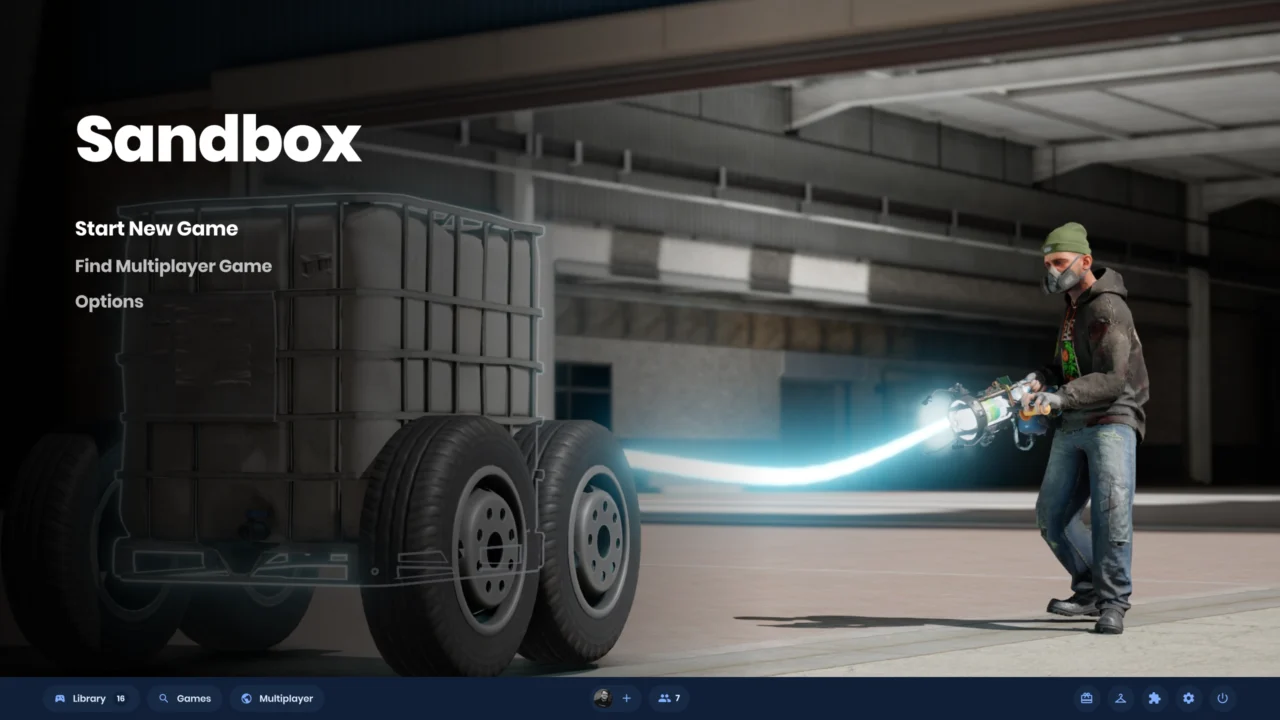
When you launch s&box, you’ll arrive at either the Sandbox main menu or the main menu of the last game you played. Developers can take full control of that screen and customize it for their games.
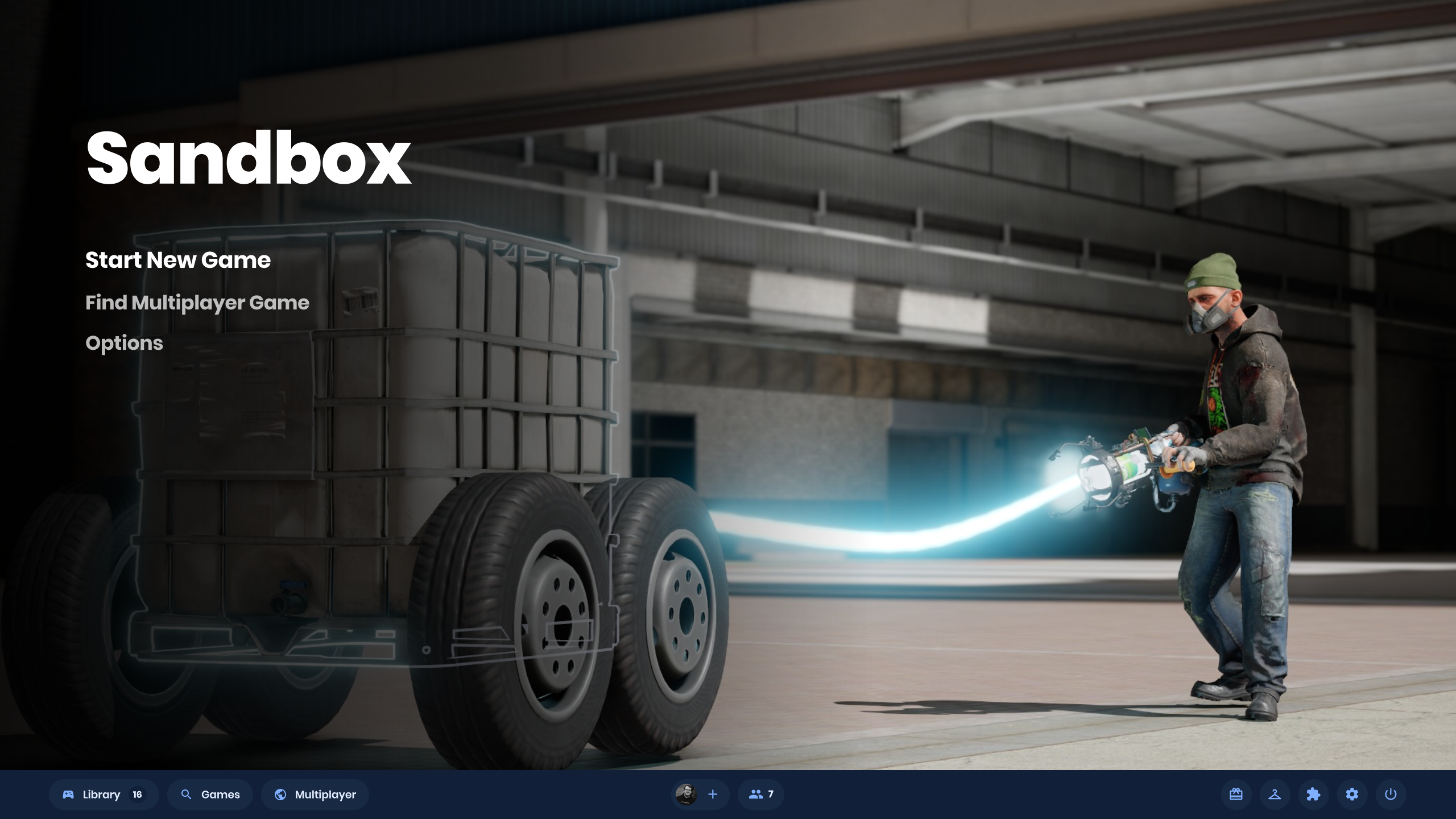
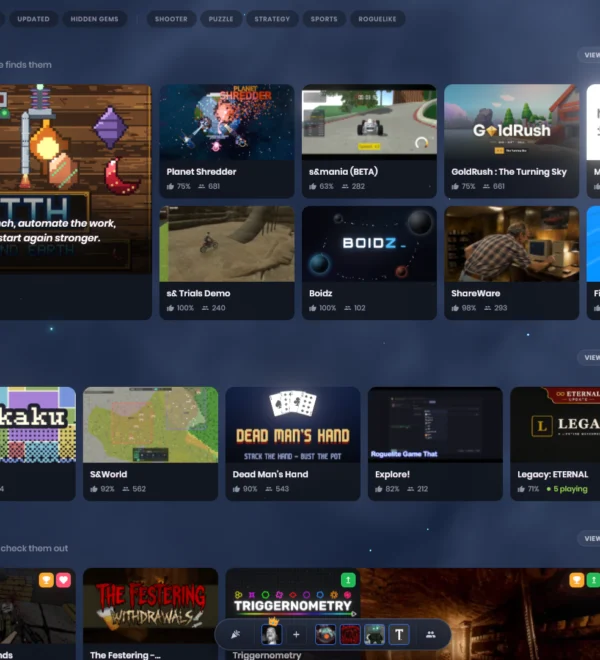
Steam Workshop will handle game discovery, making it easy to find, favorite, subscribe to, and switch between games.
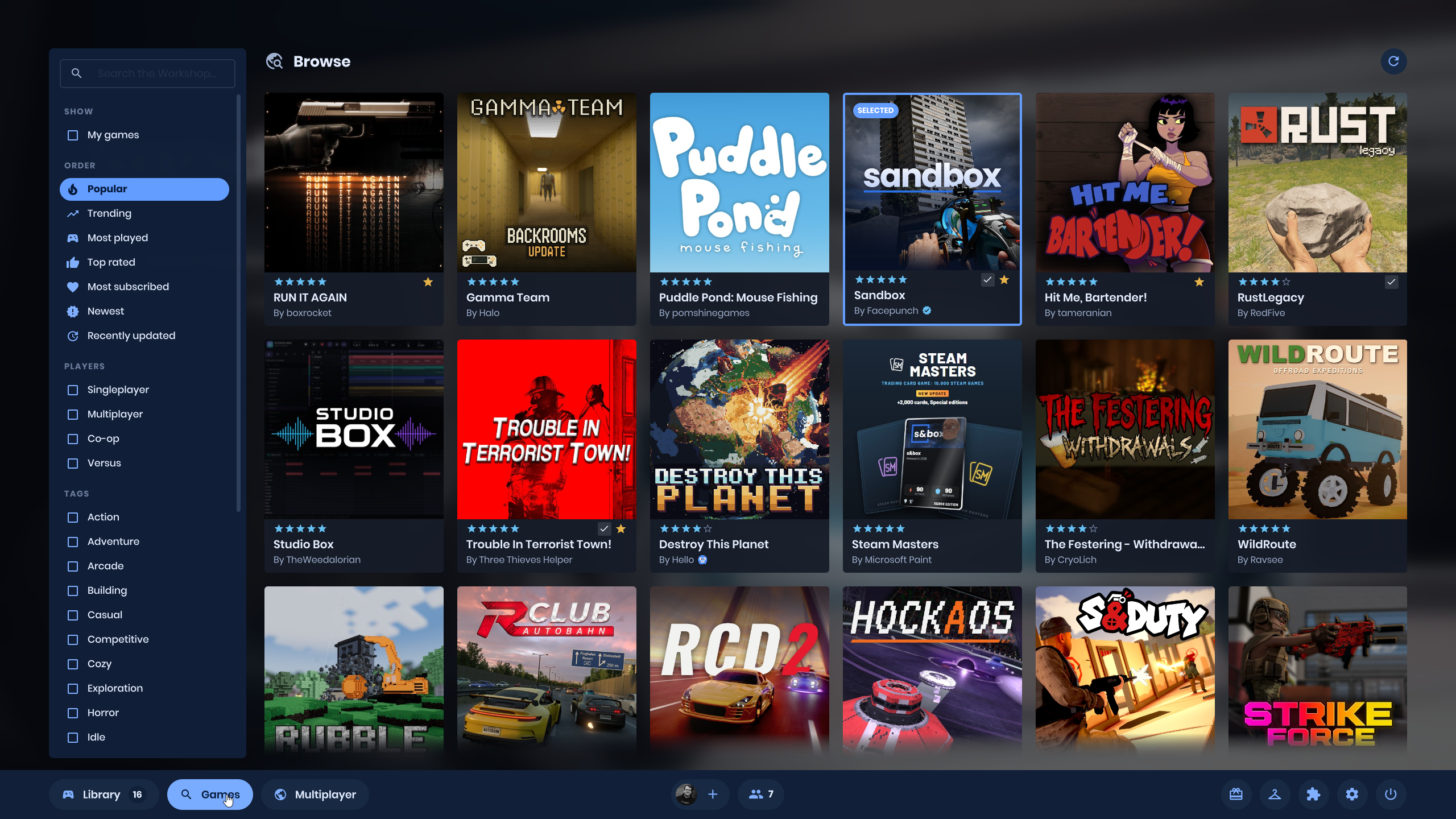
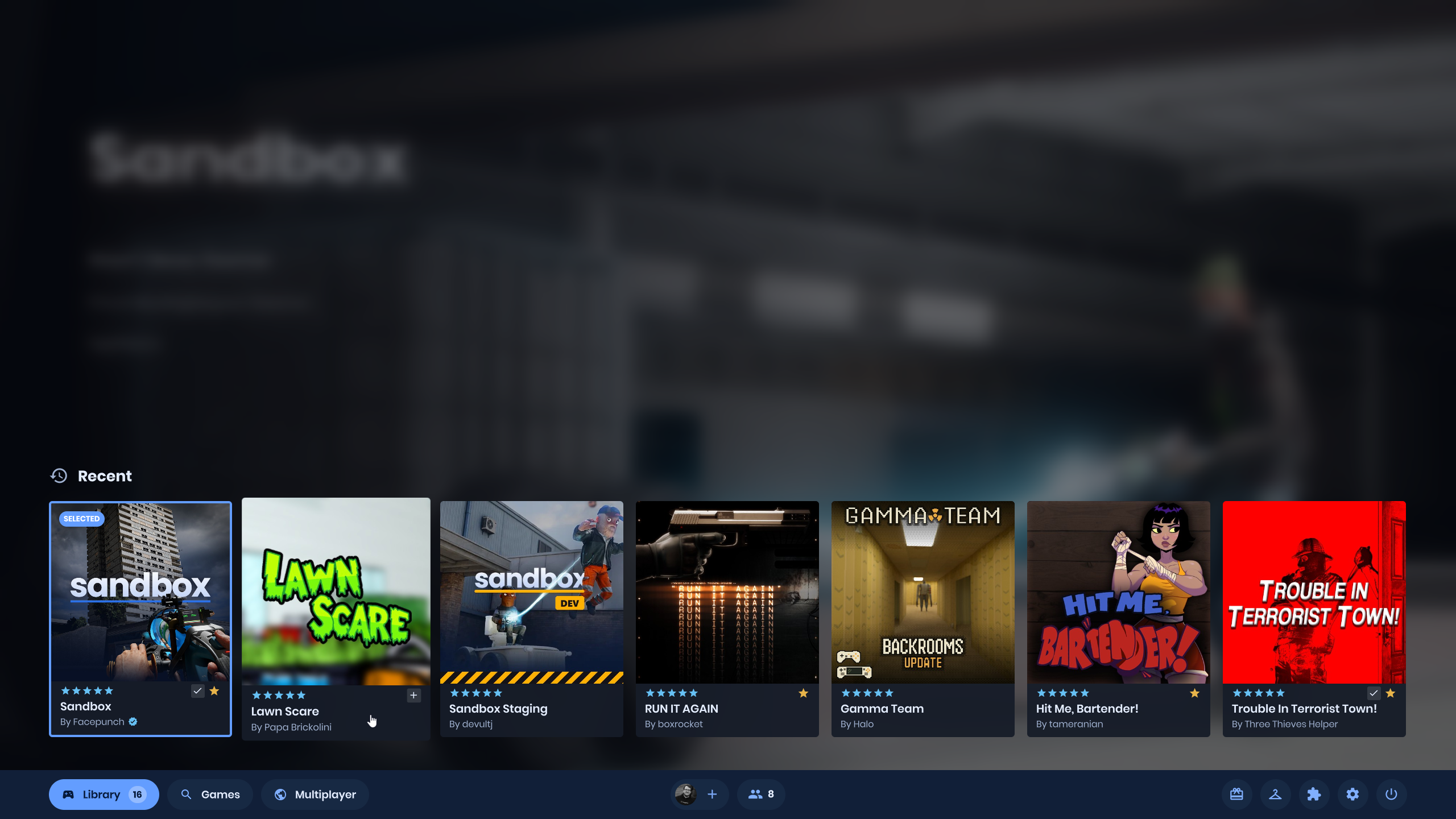
The new interface is currently a preview and isn’t enabled by default. We’re aiming to make it the standard experience in the next major update. To try it now, open Settings → Game → “New” Menu.
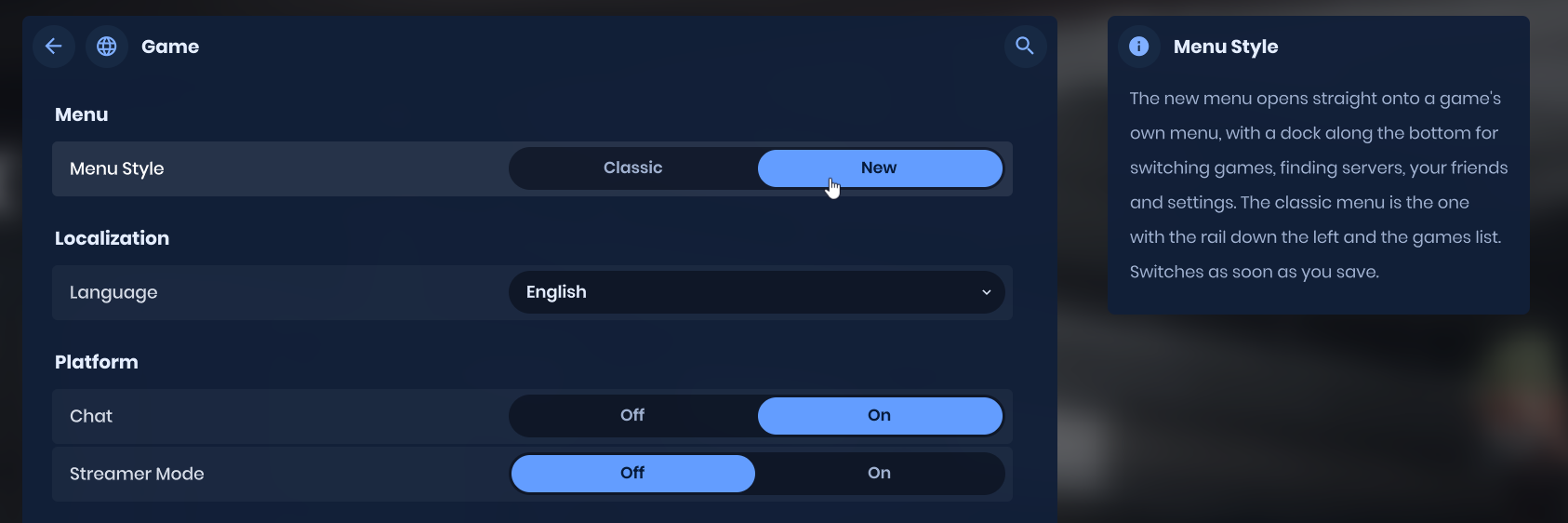
For developers: Games and maps will be discovered through Steam Workshop. If you haven’t published yours to the Workshop by the time the new interface becomes the default, players won’t be able to discover them.
New Avatar Menu
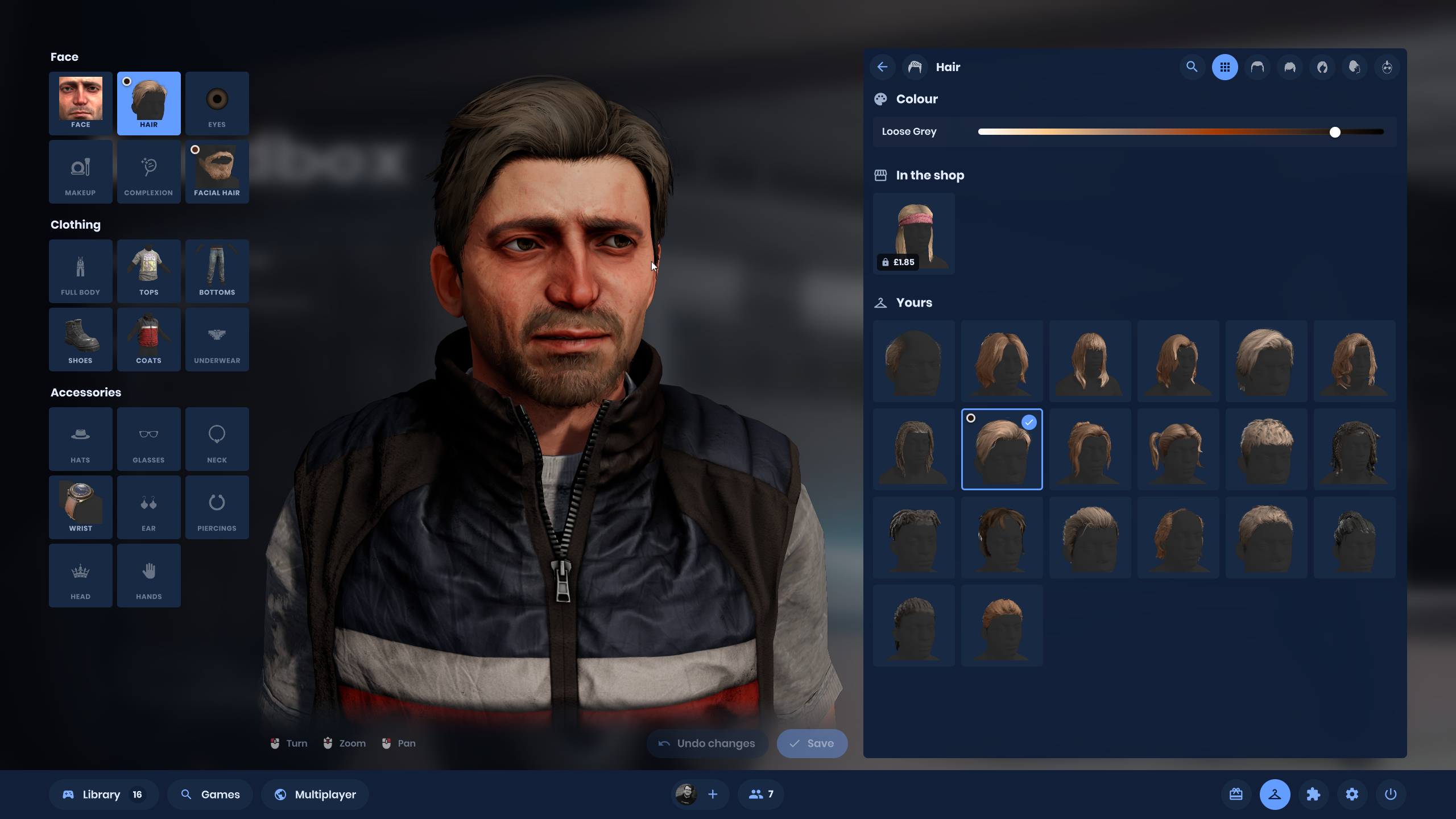
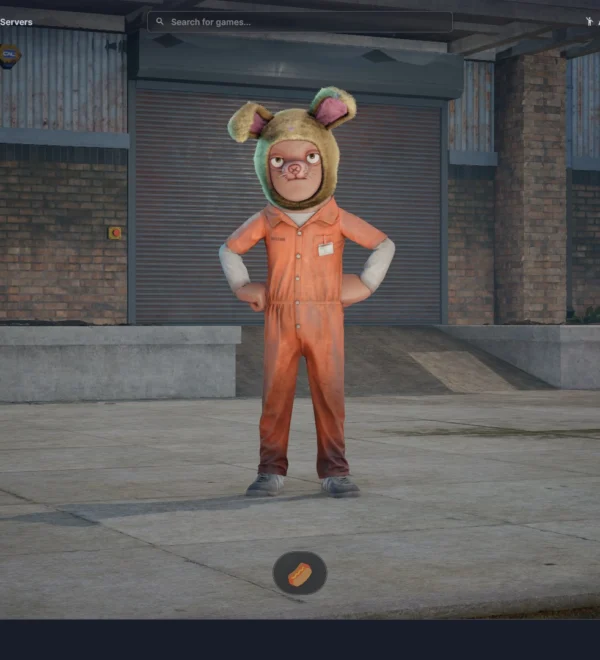
The avatar menu has been completely redesigned and integrated with the shop. You can now try on items more easily before buying, so you know exactly how they’ll look.
Console UI
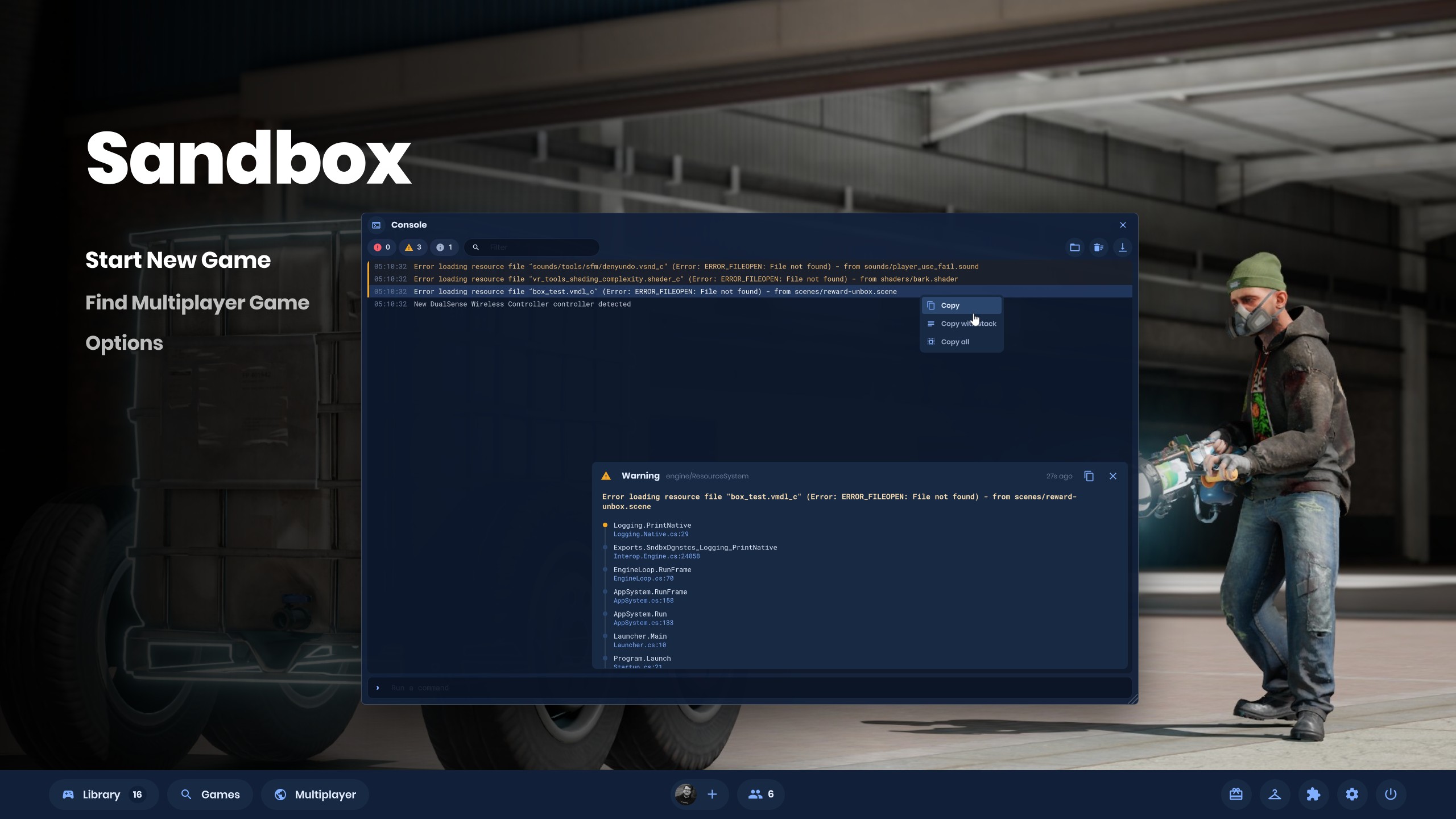
The console is now a window, with a simpler interface that makes it more useful.
Free-to-Play Is Coming
In October, Garry announced that s&box would become free-to-play before the end of the year. We now have a date: s&box will go free-to-play on December 10.
If you’ve already bought s&box, thank you for supporting us early. Everyone who owns the game before the transition will receive exclusive Steam inventory items that won’t be available after December 10. We’ll share the details soon.
First-Person Body and Shadow Visibility
When “Hide Body in First Person” is disabled, your body is now visible without the head and arms. You can also choose to show the arms, which is useful for seats and vehicles.
You can also choose to display body shadows even when the body itself is hidden.
Player Air Strafing
The PlayerController now includes air-strafing options, enabling bunny hopping and surfing.
Player Air Friction now defaults to 0, allowing bunny hopping and surfing by default when air strafing is enabled.
Smoother, Faster Loading
Loading is now faster and produces less stuttering.
The loading screen fades in properly and uses a single progress bar for the entire process. Switching between games also reuses more content that’s already loaded.
Sound Simulation
We’ve improved acoustic simulation in several ways:
- Moving sounds now feature a Doppler effect.
- Sound travels around corners and through doorways more reliably.
- Walls muffle sound more realistically.
- Reverb better reflects the space you’re in.
- Sounds fade more naturally over distance.
We’ve also fixed several causes of clipping, crackling, and audio dropouts during loading and gameplay.
Built-in Voice Chat
Voice chat is now built into the platform alongside text chat. Multiplayer games receive it by default, including games published without Voice components. Games that already use Voice components will continue to use them.
A new overlay on the right side of the screen shows up to eight people speaking at once. Developers can disable the overlay or configure voice chat in the new Voice Chat section of their project’s platform settings.
The Incoming Voice Volume slider has moved to the Voice section of the settings. We’ve also added a Game Volume slider, making it easier to turn down game audio when voices are hard to hear. A single toggle can now disable voice transmission, reception, and the overlay at once.
Automatic gain control helps keep transmitted voices at a similar level by boosting quiet microphones and reducing loud ones. It’s designed to avoid amplifying background noise, and the voice gate now applies a 100 Hz high-pass filter. You can turn automatic gain control off in the settings if you prefer.
Finally, the new Streamlined Push to Talk option keeps your microphone open between presses without transmitting. This should help devices that take longer to start, particularly Bluetooth headsets.
AnimGraph 2
AnimGraph 2 is a new animation system built on Esoterica, featuring a native runtime and a completely new set of authoring tools.
The graph editor supports blend trees, nested state machines, transitions, 1D and 2D blend spaces, layers, bone masks, IK, and root motion. You can debug graphs live as parameters and node activity change, record and play back sessions, and hot reload while editing.
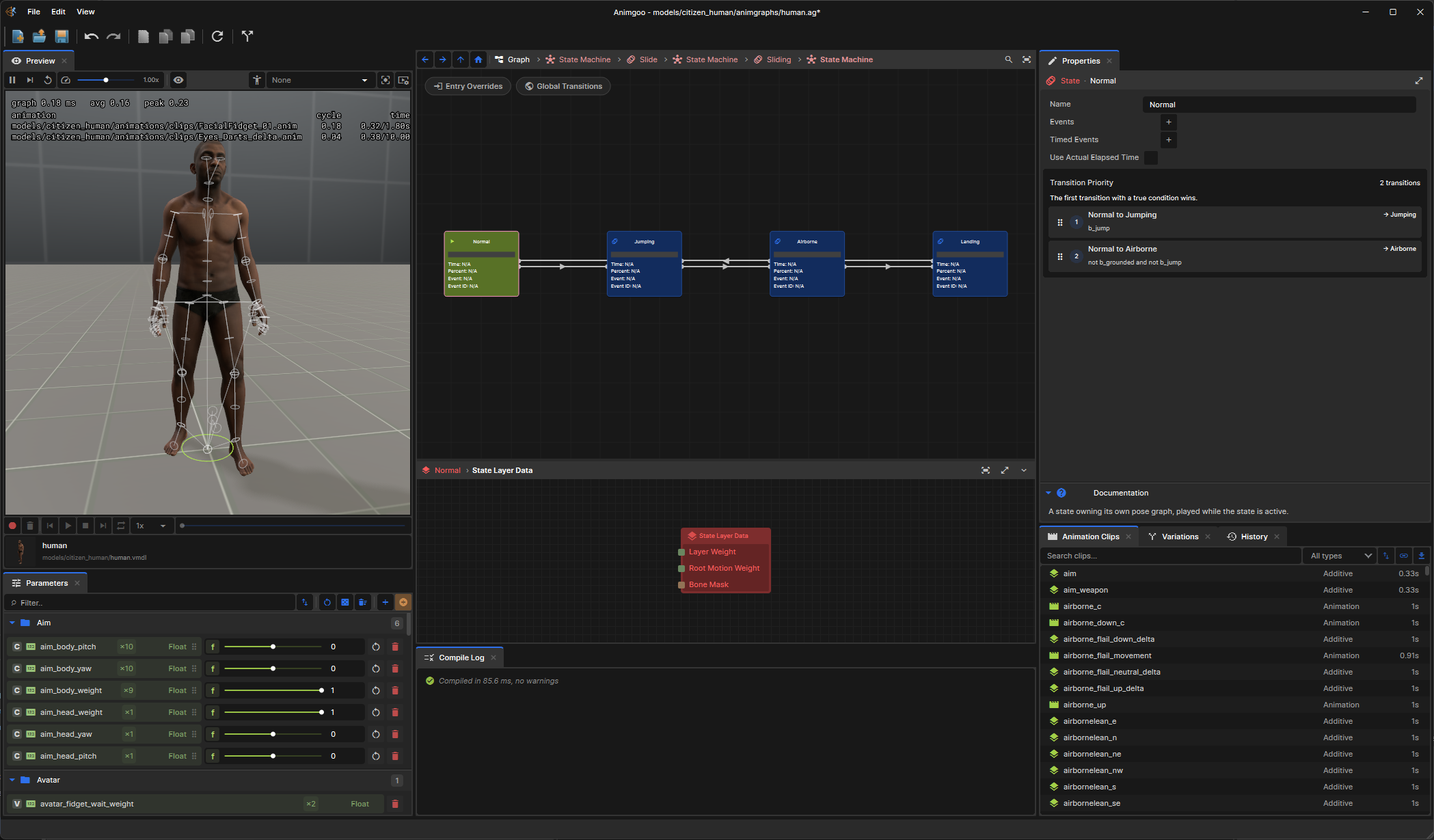
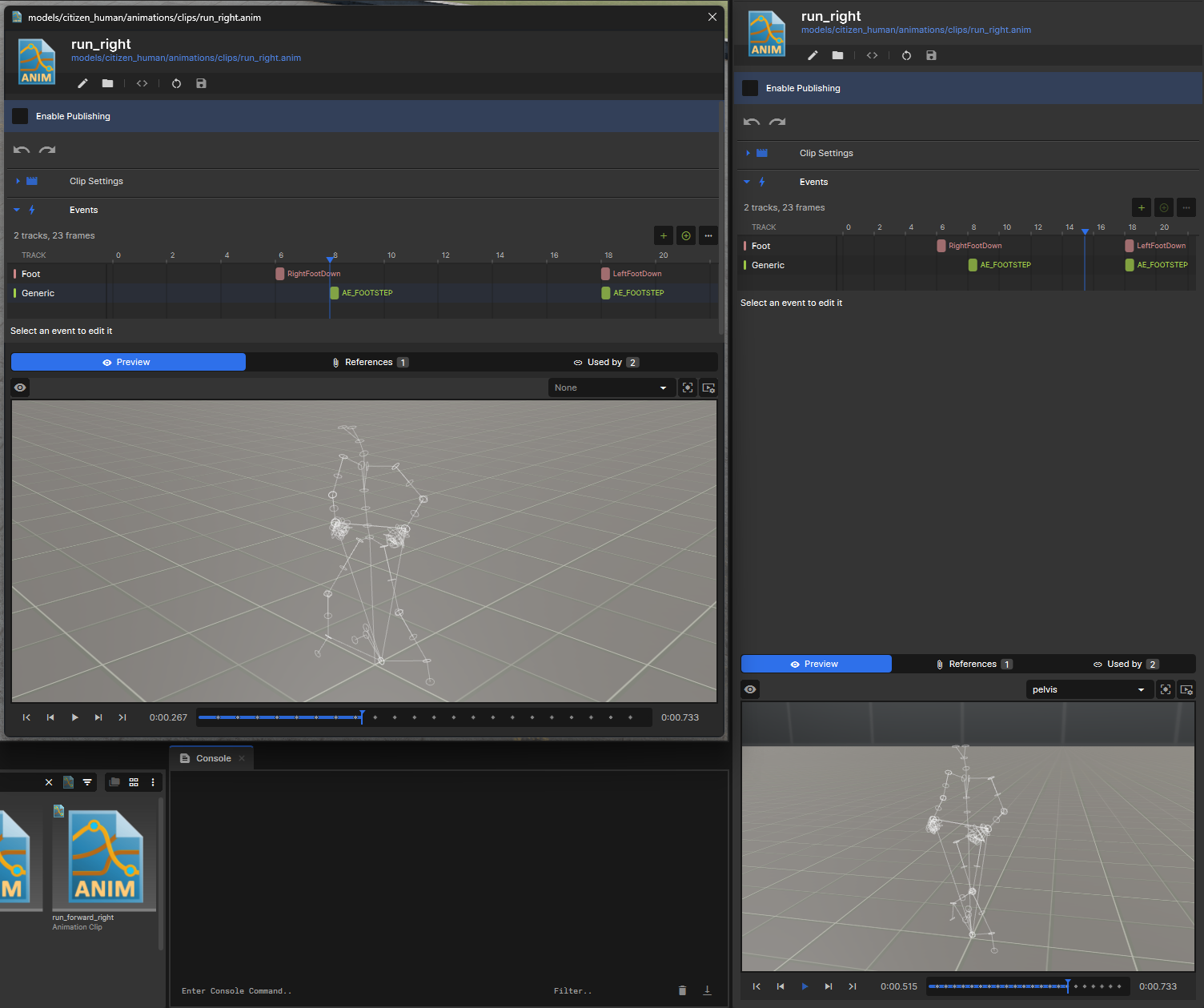
Skeletons and animation clips are now standalone assets with dedicated editors that share the same preview and undo history. They support bone mask authoring, import settings, additive animation, motion extraction, and event timelines. You can create a skeleton directly from the asset browser or a source file, and ModelDoc weight lists export as bone masks.
Graphs can also be swapped at runtime. Add an External Graph node to your main graph, then connect another graph from code. This is useful for one-off actions such as emotes or interactions:
Renderer.Animation.ExternalGraphs.Connect( "action", ActionGraph );Existing AnimGraph 1 content will continue to work. The old APIs are deprecated, and the original graph editor is now read-only.
Typed Animation Events
Animation events on AnimGraph 2 clips can now be typed C# classes with their own properties, rather than a name and a loose collection of parameters. Start by creating a data-only class:
public sealed class ReloadEvent : AnimationEvent
{
    [Property] public int Ammo { get; set; } = 30;
}
Add an Animation Events track in the clip editor, place an event, select ReloadEvent, and edit its properties as you would in any other inspector. Any enabled component on the renderer’s GameObject or one of its parents that implements Component.IAnimationEvent will receive the event automatically. No renderer reference or subscription is required:
public void OnAnimationEvent( AnimationEvent data )
{
    if ( data is ReloadEvent reload )
        Ammo += reload.Ammo;
}
Rendering Profiler
The rendering tab in the F11 developer tools now includes a timeline profiler. Pause, zoom in, and inspect events to see exactly what’s consuming frame time.
We’d also like to make this timeline view available for general CPU profiling.
Wall Editor
A new wall primitive makes map building easier. Place points along a path, and it generates walls between them.
Faster Asset Compilation
Opening projects and compiling assets is now faster, especially on the first run when everything needs to be compiled.
We’ve replaced the old content builder with a shared managed pipeline that avoids repeated work and compiles assets in parallel within a single process. The result is faster editor startup, fewer freezes during compilation, and lower memory usage.
On the test machine, a clean build of the core assets fell from 18 minutes to under 4, while peak memory use dropped from roughly 30 GB to 10 GB.
More Reliable Peer Connections
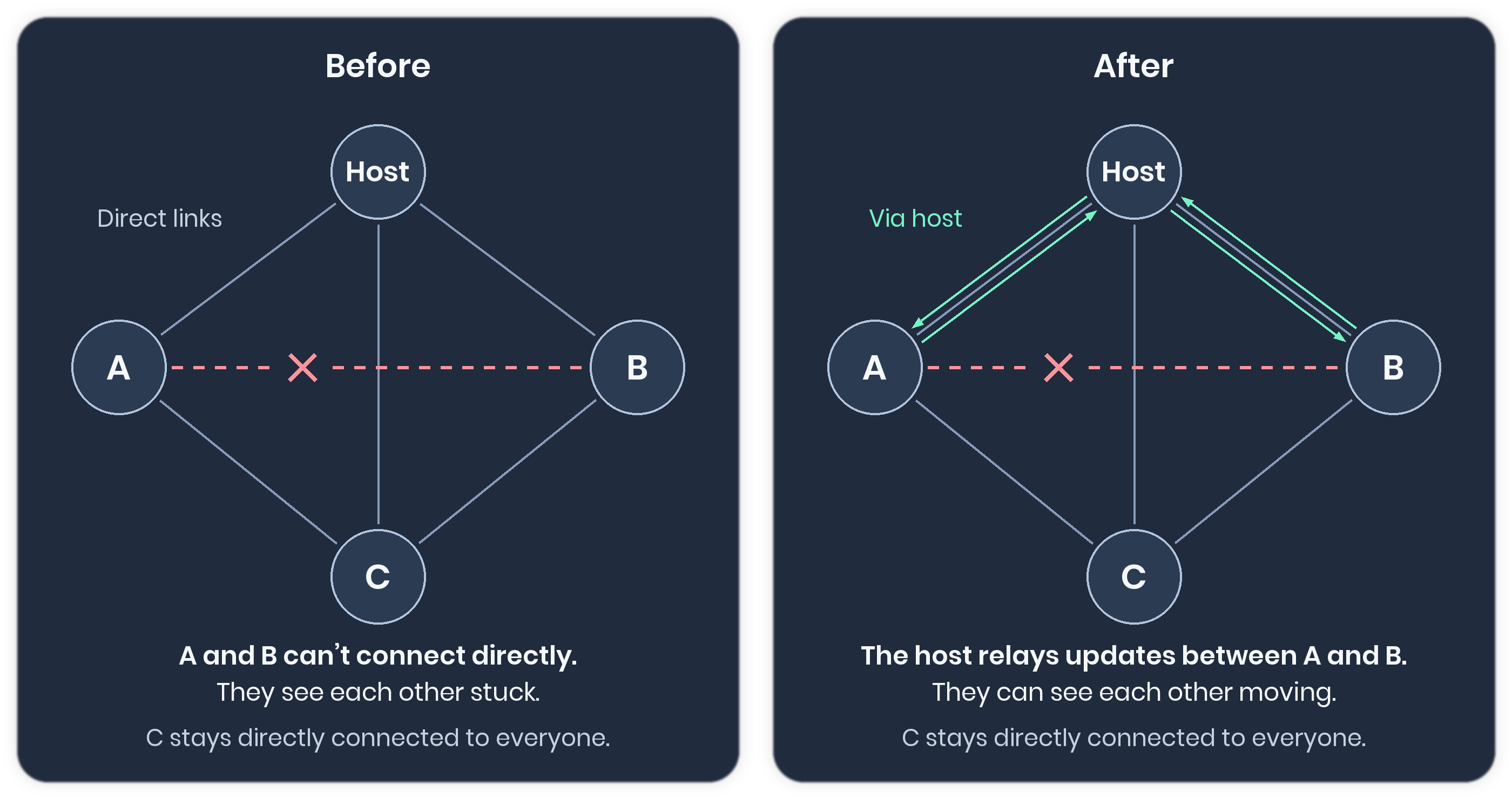
Our lobbies use full-mesh peer-to-peer networking, so every player can send updates directly to every other player. However, NAT, VPNs, or provider restrictions can sometimes prevent two peers from connecting directly.
This could cause client-side movement and other updates to fall out of sync. For example, one player might appear stuck at spawn while everyone else moved normally.
The host now relays updates between players who can’t connect directly, ensuring their movement and other updates still reach one another.
Less Garbage
We’ve reduced idle per-frame engine allocations from several kilobytes to almost zero, leaving the garbage collector with less work to do.
Batched Text Rendering
TextRenderer components now use the sprite batcher instead of drawing each label separately. In a test scene filled with world text, frame time dropped from 25 ms to 3 ms.
Labels using the default blend mode are batched automatically. Those with custom attributes or other blend modes are still drawn individually.
Keyboard Input Capture
Games can now capture keyboard input with Input.Keyboard.Capture. While capture is active, key presses go to the game instead of triggering input actions, making it useful for tasks such as rebinding controls.
Pressing Escape or opening the menu always ends capture, so a game can’t trap your keyboard.
Player Animator Fixes
Player animations previously applied spring dampening to almost every mouse input. This caused noticeable animation delays, with the held weapon leading the player’s arms while aiming.
The issue was especially apparent during a quick 180-degree turn:
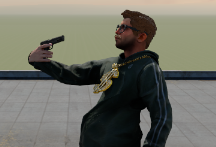
Aiming is now slightly stiffer but much more accurate, without overlapping limbs or weapons pointing at the player’s own head.
Player Duck Timing
Previously, pressing the duck button made players crouch instantly rather than easing into or out of the movement. You can now set separate timings for crouching and standing, and rebind the crouch button.
Player Jump Settings
You can now give players an additional forward speed boost when they jump at a full sprint, expressed as a multiplier of their top speed. This allows jumping while running forward to be faster than running alone.
You can also enable Hold to Jump, allowing players to hold the jump button for repeated jumps instead of timing each one on landing—ideal for bunny hopping.
 Rethinking
 Neck and Neck
 Update 26.09.15
 Update 26.09.08
 Update 26.09.01
 Update: August 26, 2019
 Update 26.08.05