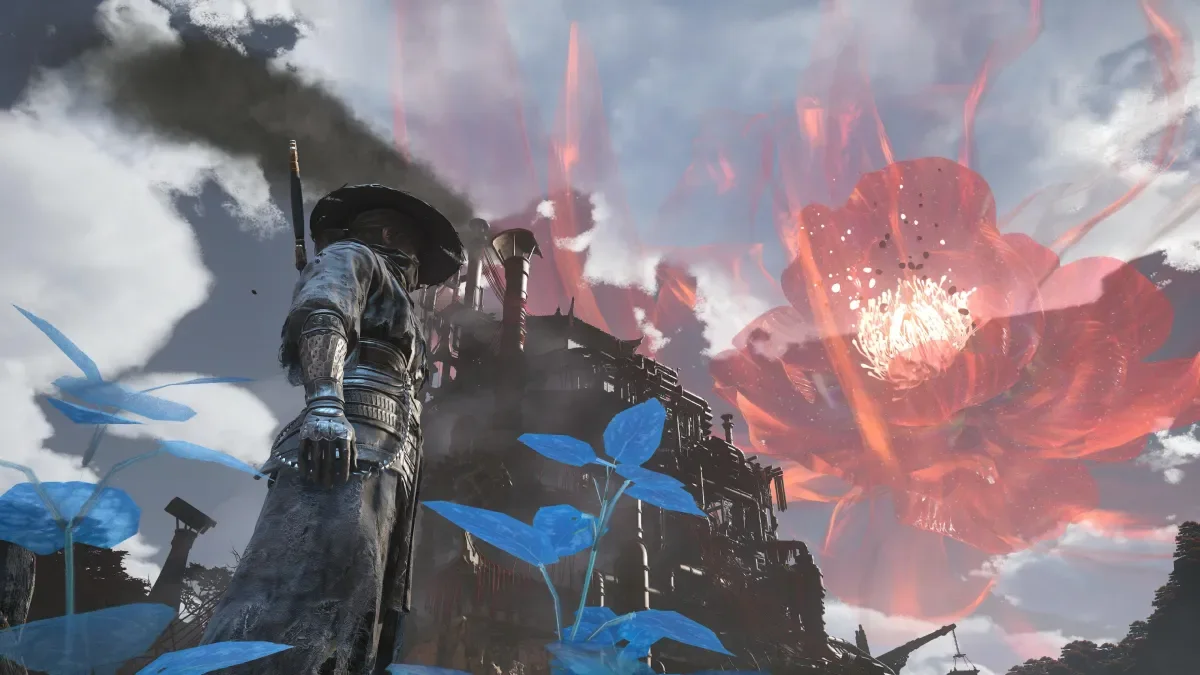
Phantom Blade Zero: The Best Graphics and Performance Settings on PlayStation 5
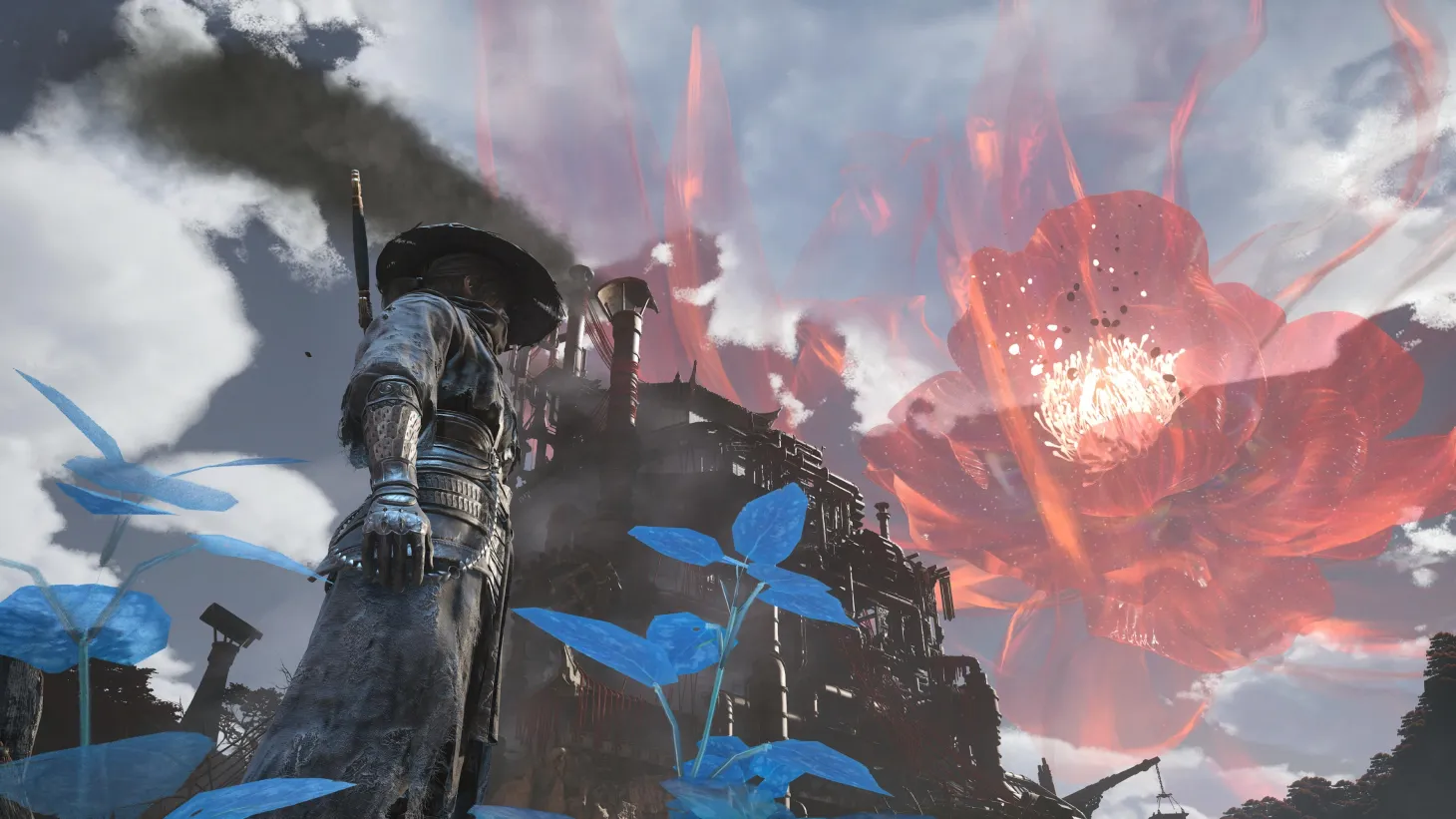
Phantom Blade Zero is officially available worldwide as a console exclusive on PlayStation 5, alongside PC releases via Steam and the Epic Games Store. Easily standing out as my favorite action title of the year so far, you can explore the reasoning behind this praise in the official Phantom Blade Zero review. Beyond that initial recommendation, our curated collection of essential beginner tips delivers crucial insights I wish I’d known from the start. Additionally, if you are aiming for complete narrative completion, my comprehensive guide on securing the true ending will steer you toward all critical story milestones.
However, if your primary goal right now is optimizing your visual experience on the PS5, this breakdown is tailored specifically for you.
Analyzing Phantom Blade Zero’s Graphical Presets
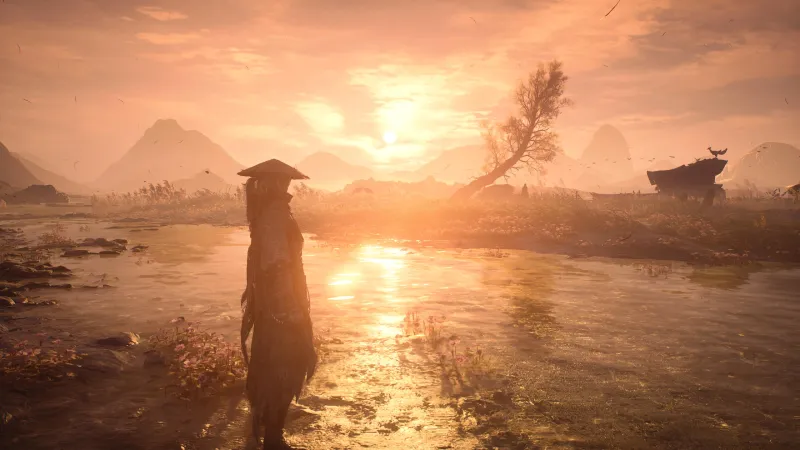
On the PS5 Pro, Phantom Blade Zero features three distinct visual presets: Quality, Balanced, and Performance. After thoroughly testing each option, Balanced quickly became my definitive choice. Operating smoothly at an upscaled checkerboard 4K resolution targeting 40 FPS, it requires a 120Hz display equipped with Variable Refresh Rate (VRR)—a standard inclusion across nearly all modern high-refresh-rate screens. The upscaled 4K fidelity is remarkably close to native resolution, to the point where casual observers will likely notice zero difference. Best of all, the 40 FPS threshold serves as a brilliant mechanical sweet spot between standard cinematic framing and high-speed responsiveness, offering a noticeably smoother cadence than 30 FPS without sacrificing visual crispness.
Please note: Standard PS5 owners will not have access to this Balanced mode.
Alternatively, the Performance mode scales down to 2K resolution while locking in a rock-solid 60 FPS. Given that Phantom Blade Zero is an intensely fast-paced and demanding action title, many players will rightfully prioritize the buttery fluidity of 60 frames per second. While the image is understandably softer and less refined than its high-resolution counterparts, the visual drop-off fades into the background once the kinetic combat takes center stage.
Lastly, the Quality mode delivers breathtaking native 4K visuals, representing the absolute pinnacle of the game’s aesthetic presentation. Unfortunately, locking the experience to 30 FPS simply doesn’t do justice to the lightning-fast combat mechanics. While I wouldn’t recommend this setting for intense skirmishes, it is the ultimate way to wander through the breathtaking vistas of Wulin while capturing stunning screenshots of S-Game’s artistic mastery.
Quick tip: Ray tracing is fully supported on the PS5 Pro. Throughout my testing with the setting toggled both on and off, I encountered zero performance degradation, meaning you can comfortably leave it enabled for an extra layer of polish.
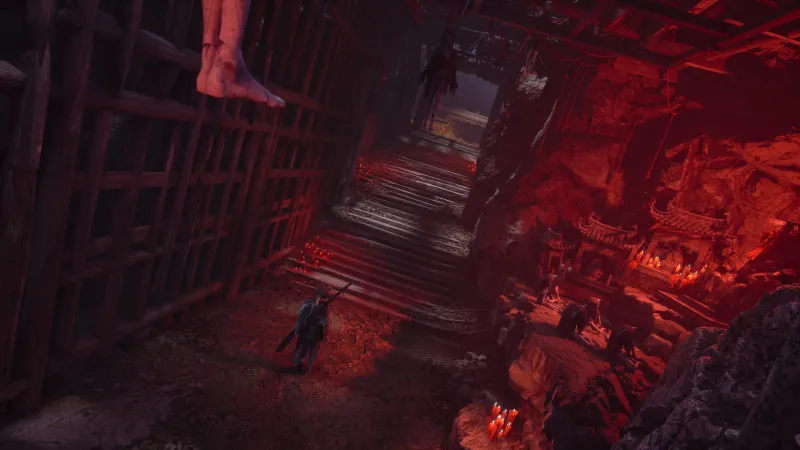
To summarize your console options:
- Quality Mode: Native 4K resolution at 30 FPS
- Balanced Mode: Upscaled 4K resolution at 40 FPS
- Performance Mode: Upscaled 2K resolution at 60 FPS
For players diving in on desktop, here is the official hardware specification and system requirement guide for running the game smoothly through Steam and the Epic Games Store:
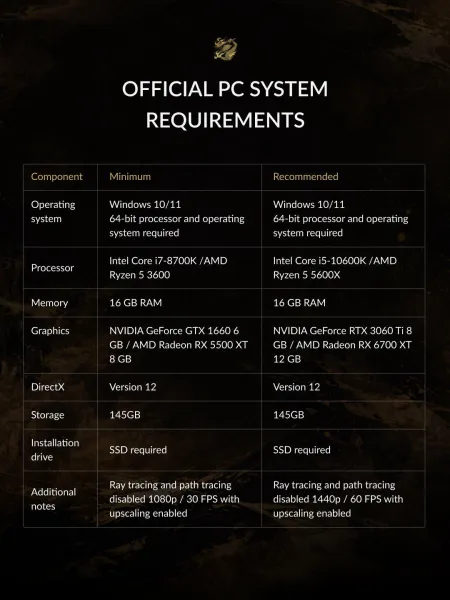
Before you dive headfirst into the fray, be sure to read through our comprehensive review, check out our expert gameplay tips, and review our walkthrough on unlocking the definitive ending.
Related articles
 Xbox Console Sales Revenue Drops 14 Percent Amid Declines for Game Pass and Third-Party Games
 Modern Warfare 4 Season 1 to Introduce Secret X01 Weapon Complex to DMZ
 Phantom Blade Zero: Longtime Sonic and Ezio Voice Actor Roger Craig Smith to Voice Protagonist Soul
 BioWare Co-Founder Calls EA Acquisition Studio’s Final Nail in the Coffin
 Scarlett Johansson Sci-Fi Movie Under the Skin Leaving Netflix
 Super Battle Golf sets March 25, 2027 console launch with cross-play
 Ridley Scotts Gladiator 2 Becomes a Netflix Streaming Success
 The Must-Play Board Games from 2026’s Biggest Board Game Fair