
Update Gaming Services Before Playing Forza Horizon 6 on PC
Essential Gaming Services Update for Forza Horizon 6 PC Players
To ensure a smooth experience when launching Forza Horizon 6, all PC players—including those utilizing Steam—must ensure their Gaming Services application is fully up to date. Please follow the instructions below, which apply to both the Xbox app and Steam installations.
How to Update Gaming Services
- Launch the Microsoft Store on your Windows PC (press the Windows key and search for “Store”).
- Select the Library icon located in the bottom-left corner of the window.
- Click the Get updates button positioned in the top-right corner.
- Locate “Gaming Services” within your list of apps and click Update if it appears.
If your system is already running the current version, you will simply see an “Open” or “Installed” status. If you cannot locate Gaming Services in your library, you can manually trigger an installation or update directly via the official Microsoft Store Gaming Services page.
Verifying Your Version
To operate correctly, you must have at least version 36.113.2002.0 installed. You can verify your current version by following these steps:
- Open your Windows Settings app.
- Navigate to the Apps section and select Installed apps.
- Use the search bar to find Gaming Services.
- Click the three-dot menu (…) next to the app and select Advanced options.
- Scroll down to the “Specifications” section to view the version number. Ensure it is 36.113.2002.0 or higher.
Troubleshooting
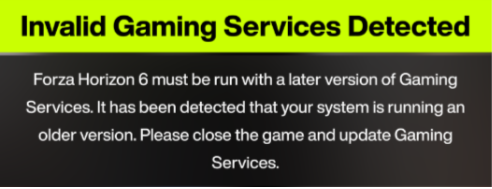
If you encounter an “Invalid Gaming Services Detected” error when attempting to launch the game, it indicates your system is running an outdated version. Please follow the update steps outlined above to resolve this issue.
Related articles
 An American Supercar Makes its Way to Japan!
 Unlock a Unique Mustang GT with This Week’s Reward!
 Forza Horizon 6 Community Calendar – October 12th
 Play Forza Horizon 6’s First Expansion on January 21
 New Cars and Outfits Arrive in the First Week of Horizon Meet!
 Series 6 Update, October 10, 2026
 Cruise with Friends in Horizon Meets
 Experience the Roar of a Big V8 in the Final Week of British Automotive Production